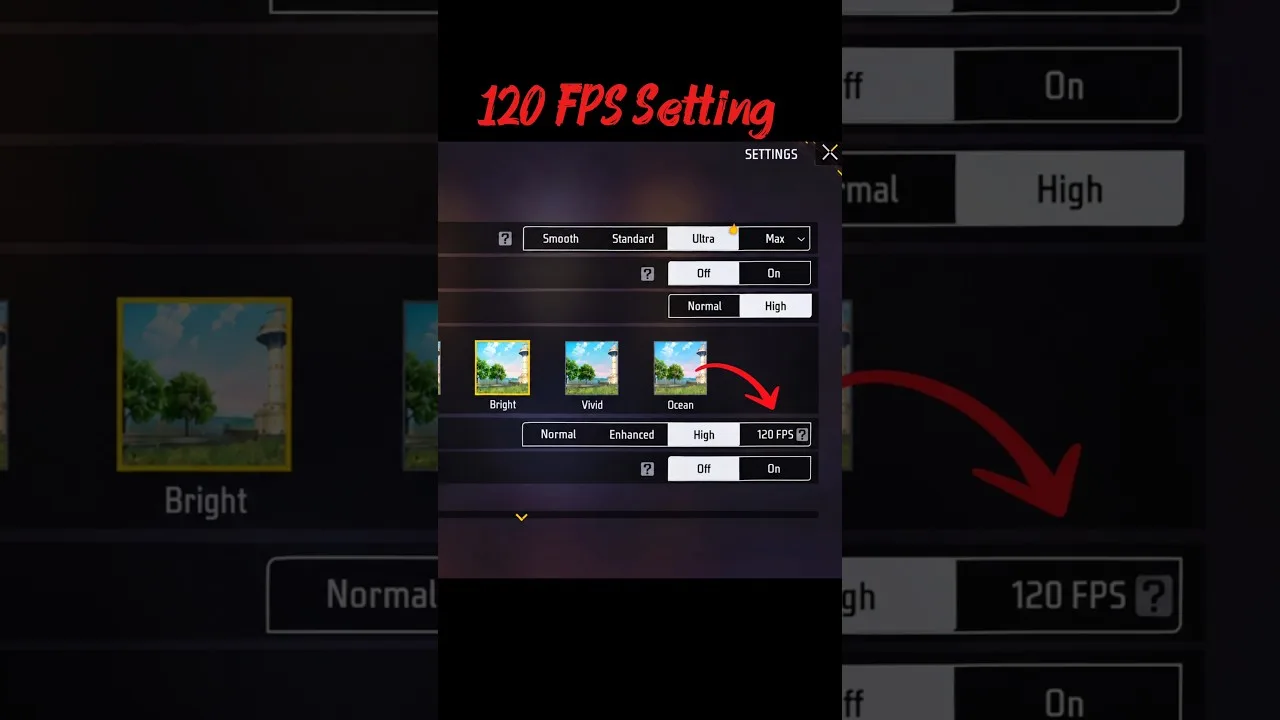
Refresh rate is how many times per second your screen shows a new image, and it changes how sensitivity feels even when the numbers stay identical. A setup tuned on a 60Hz phone often feels different on a 90Hz or 120Hz display because you see the result of each swipe sooner and more smoothly.
If you are switching phones or helping a friend on different hardware, open Sensibilidades sensitivity tool for device-based starting points, and check the Sensibilidades device compatibility guide first to see which refresh rates and panels the app guidance assumes for phones in your class.
Why the Same Numbers Feel Faster at 120Hz
On a higher refresh display, each frame of your swipe appears with less delay, so your brain registers movement earlier and corrects sooner. Many players describe the same sensitivity as feeling lighter or more responsive, and some overshoot at first because their corrections arrive faster than their habits expect. The setting did not change; the feedback loop did.
This is why copying values between a 60Hz phone and a 120Hz phone rarely transfers perfectly. The copied player adapted to slower feedback. Expect a short adjustment period, and expect to fine-tune rather than rebuild: small changes to general and red dot values usually settle the new feel within a few sessions.
What 60Hz Players Should Prioritise
On a 60Hz phone, smoothness comes from avoiding unnecessary extra movement. Slightly calmer sensitivity helps because each correction is seen later, so twitchy settings produce visible overshoot. Focus on a general value you can stop precisely and scoped values that track without constant re-adjustment, rather than chasing the raw speed a high-refresh player can control.
Frame stability matters as much as the refresh number. A steady 60 frames feels better than a fluctuating higher rate, so graphics choices that keep the frame rate stable support your sensitivity work. The pairing advice in DPI and sensitivity together guide applies here too: your DPI and sensitivity should be judged at the frame rate your phone can actually hold in fights, not the rate it shows in menus.
What Changes at 90Hz and 120Hz
At 90Hz and especially 120Hz, tracking moving targets becomes visibly smoother, and many players can raise sensitivity slightly while keeping control, because corrections land sooner. Drag motions also feel more connected, so headshot practice often improves. Still, raise values in the same small steps as always; the display rewards control, it does not replace it.
Watch for a new problem at high refresh: settings can feel perfect in training yet busy in real fights, where effects and multiple opponents add visual noise. Judge changes over several real matches, across different maps and ranges, before locking a higher-refresh setup in as your new permanent base.
Moving Your Setup Between Phones
When you change phones, carry your recorded values over as a starting point, not as a finished setup. Set them, run your usual training drills, and note where the new display changes the result: turning, tracking and drag stopping are the three checks that reveal most of the difference within one session.
Keep the old record safe even after you settle on the new phone. If you ever play on the old device again, or lend your setup to a friend on similar hardware, that record saves a full evening of retesting, and it shows how much of your feel came from the display rather than from the numbers themselves.
Putting This Into Practice
Set aside one short session devoted only to how your current display presents each swipe. Do not chase wins during this session and do not judge the setup by the scoreboard at the end of it. Your only task is to repeat the same movements until they feel ordinary: turning and tracking judged at the frame rate your phone holds in real fights. When a movement starts to feel ordinary, that is useful information, because ordinary means your hands have stopped negotiating with the setting and have started trusting it. Write down what felt easier and what still felt awkward while the session is fresh, using plain words you will understand when you read the note again next week.
Next, carry the same focus into two or three normal matches without changing anything, even if the first match goes badly. A setup for how your current display presents each swipe has to survive different maps, different weapons and the small panic that arrives when a fight starts closer than expected. If it only works in a quiet training room, it is not finished yet, and the honest response is one small adjustment followed by the same test again, not a full rebuild. If it works across those matches, protect it: record the values, leave them alone for several days, and let repetition turn a good test result into dependable muscle memory you can rely on under pressure.
Finally, review the result at the end of the week rather than at the end of a single evening. Ask one simple question: did how your current display presents each swipe feel more predictable than it did seven days ago? Predictable is the right standard, because competitive aim is built on movements you can repeat when tired, rushed or surprised. If the answer is yes, keep the setup and move your attention to the next weakest part of your game. If the answer is no, change the one value most closely connected to the problem, by the smallest step you can feel, and repeat the weekly cycle with the same patience.
Final Thoughts
Refresh rate does not make a bad setup good, but it does change how any setup feels, so it deserves a place in your tuning decisions alongside DPI, screen size and thumb speed.
Match your values to the screen you actually play on, retune in small steps when that screen changes, and your aim will stay familiar even as your hardware improves.